Chapter Two · Advanced Features
Folders that know where to go.
Folder Properties give you fine-grained control over how WorkDrive folders are named, stored, shared, and moved - all configured from the pencil icon inside the workflow action.
Insta Web Works
v61·5 min
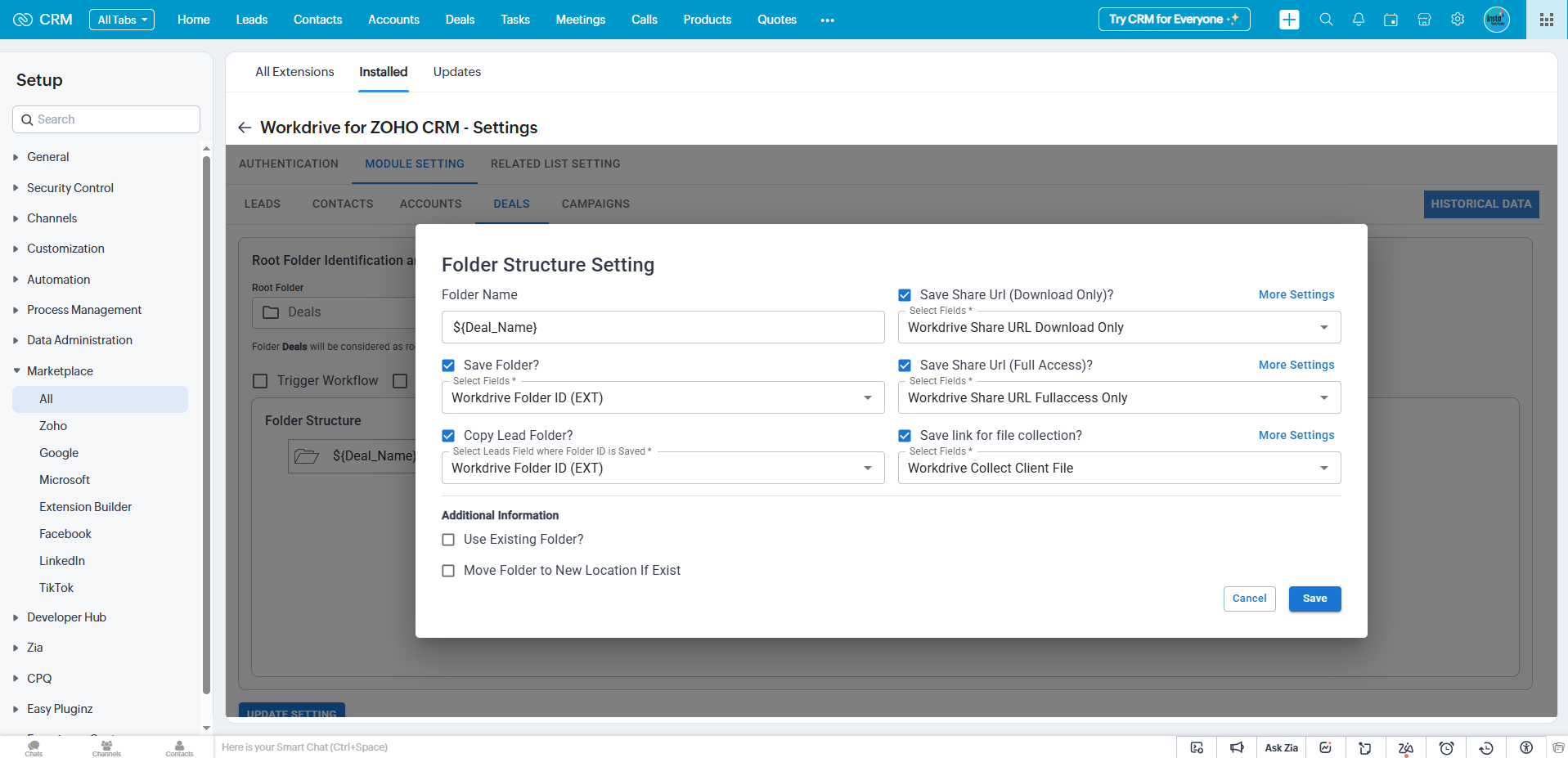
The Folder Properties section offers advanced customization options to manage how folders are created, stored, and shared within Zoho WorkDrive. By clicking the pencil icon in the folder structure, you can configure the following settings.
Folder properties
01
Folder Name
You can assign a static name to the folder or dynamically generate it using CRM fields. To use a CRM field, press Shift + 3 (#) and select the desired field from the module.
Example
Name a folder with the Lead Name or Deal Stage for dynamic organisation.
02
Save Folder?
Purpose
Save the folder ID to a CRM record field for easy reference.
How to use
Check the Save Folder? box and select the CRM field where the folder ID should be stored. This lets you link back to the folder directly from the record.
03
Copy Lead Folder?
Purpose
Automatically copy a Lead's folder when it is converted into Accounts, Contacts, or Deals.
How to use
Check the Copy Lead Folder? box and choose the CRM field where the copied folder ID should be stored.
04
Save Share URL (Download Only)?
Purpose
Generate a download-only shareable URL for the folder and save it in a CRM field.
How to use
Check the box and select the CRM field to store the URL. This link allows users to view and download files but prevents uploading new files.
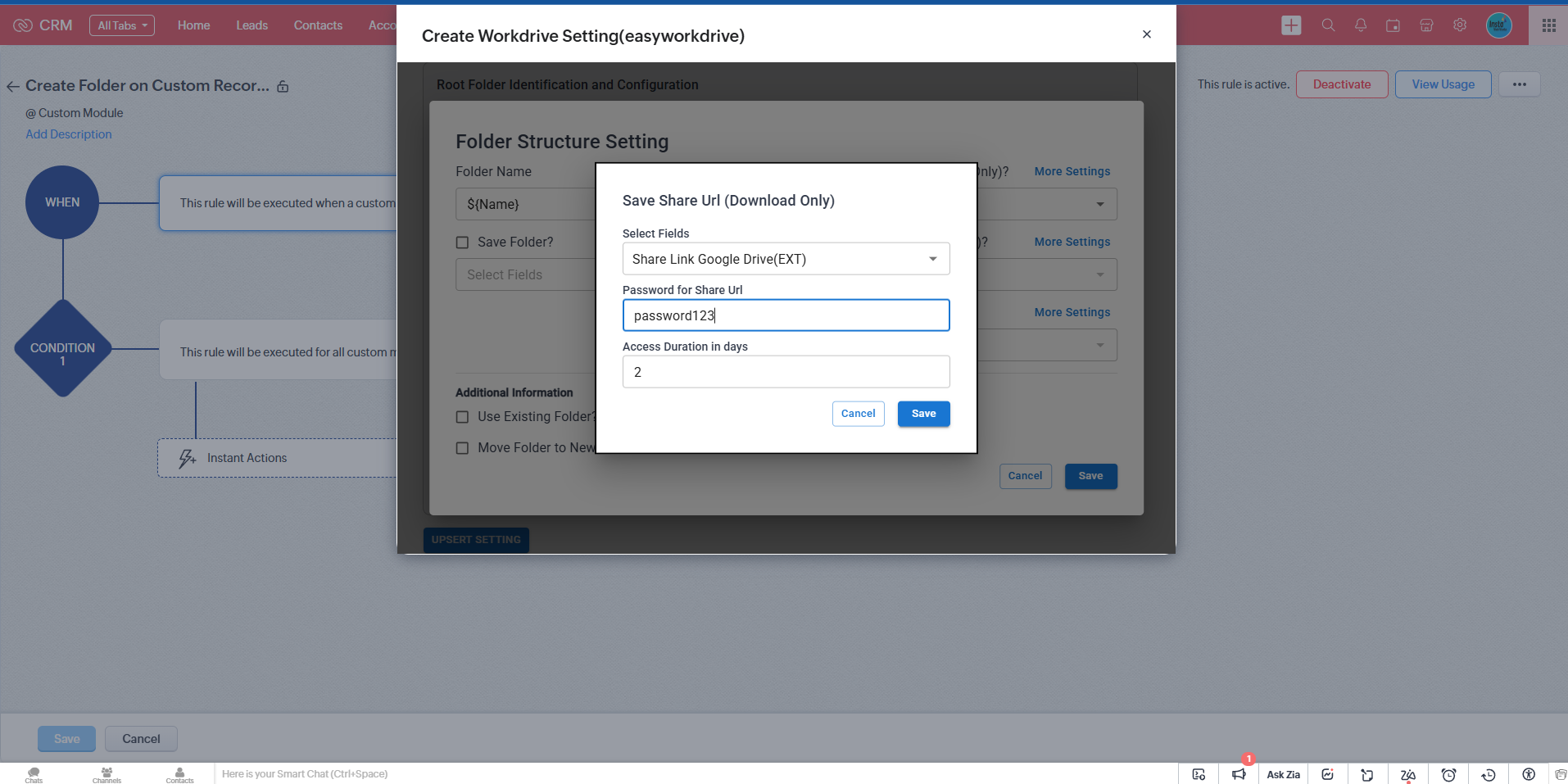
More settings
You can also set a password and specify the access duration in days.
05
Save Share URL (Full Access)?
Purpose
Create a shareable URL with full access, allowing both uploads and downloads.
How to use
Check the box and choose the field where the shareable link will be saved. This is ideal for external collaborators who need to contribute files.
More settings
You can also set a password and specify the access duration in days.
Additional Information
Use Existing Folder?
Prevent duplicate folders for similar records. If a folder with the same name already exists, the system links to the existing folder instead of creating a new one.
Caution
Avoid selecting Use Existing Folder? unless necessary - it triggers an API call on every record creation and increases usage unnecessarily.
Move Folder to New Location if Exist
Purpose
Move folders dynamically when certain CRM fields change. For example, if a Deal Stage changes, the folder is relocated to the matching folder.
Example
In the Deals module, folders are sorted by stage. When a deal moves from Negotiation to Closed Won, the folder moves accordingly.
Using these Folder Properties settings, teams can automate folder management, maintain consistent document organisation, and optimise workflows across Zoho CRM and WorkDrive.